
Learn how to register a client in the OrangeHRM Starter Application
This process can only be done in OrangeHRM Starter 5.4 and above
In order to register a client, visit the OAuth Client List page which is located in Admin > Configuration > Register OAuth Client
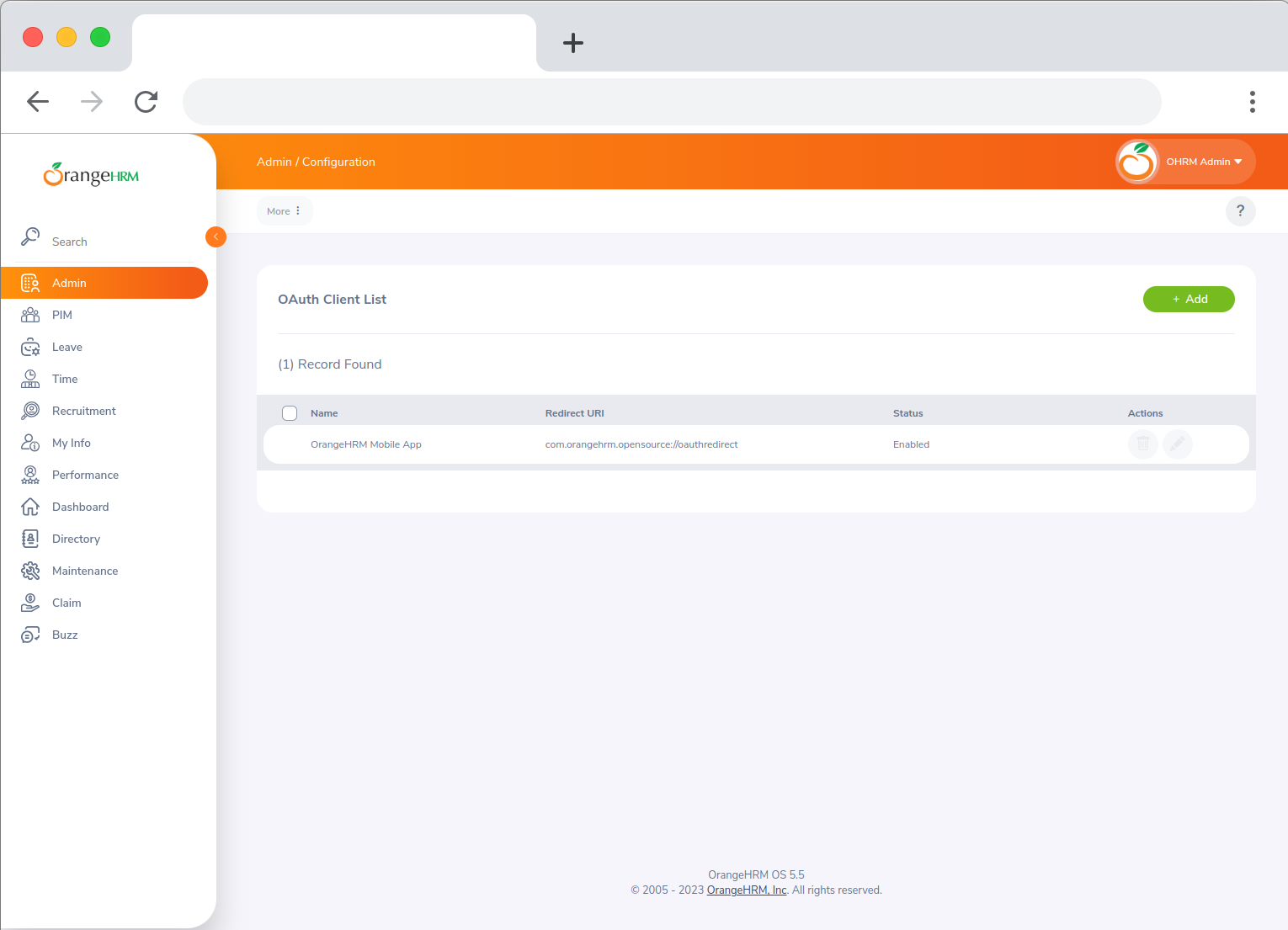
OAuth Client List page
From there click the Add button in order to create a new client.
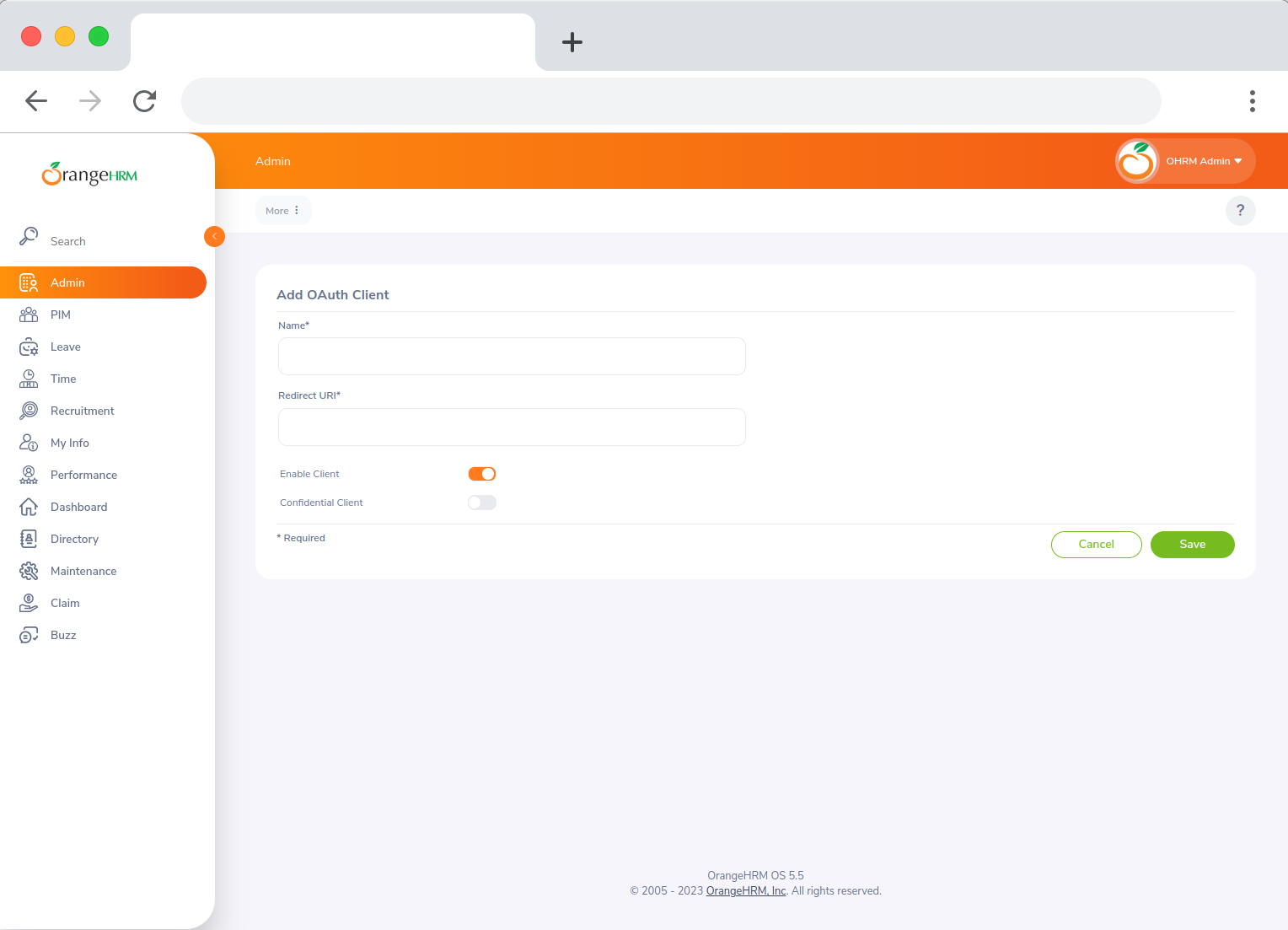
Add OAuth Client page
In order to create a new client, the two required fields are:
| Field | Meaning |
|---|---|
| Name | A name for your client. This name will not be used in the OAuth flow and is purely for identification purposes. |
| Redirect URI | Upon completing the authorization request, the OrangeHRM Starter Application will redirect to this URL and provide the authorization code and state as query parameters. |
Check out these references!
After you click save, you will be provided with a Client ID. Make sure to take note of this field as it is required to obtain an access token!
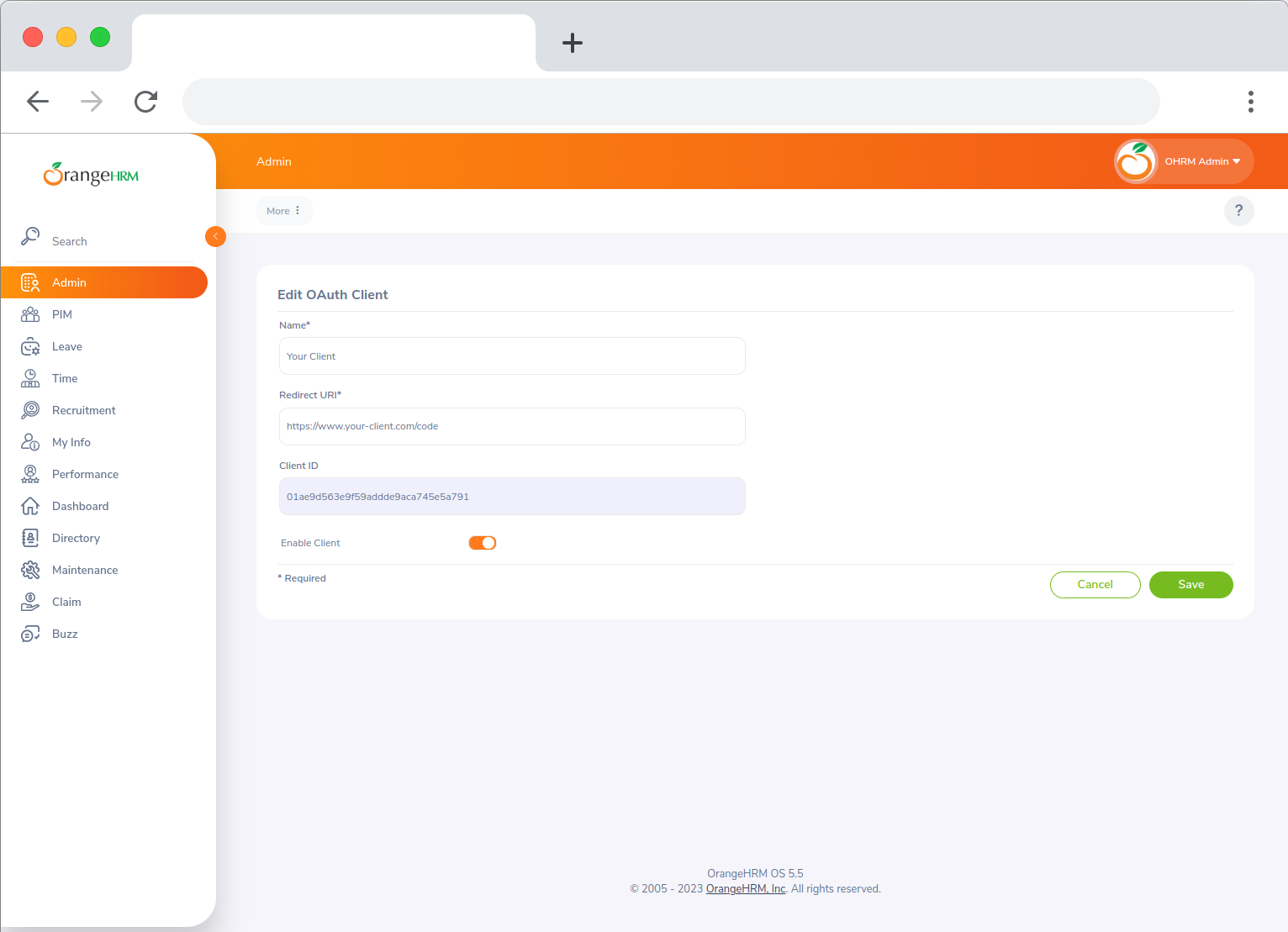
Client ID Field
Well done! You have successfully registered a client
In conclusion, the main two fields that you will need to obtain an access token are the Client ID and Redirect URI.
Next you will need to generate a code verifier and code challenge.